Complete Guideline
How to Install the Mobifin Plus Application on Android
- From your Android or iOS Device, open Play Store / Apple Store.
- Search for Mobifin Plus.
- Select the Application.
- Click/Touch Install.
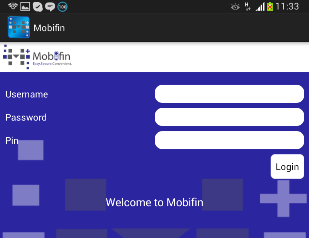
- After installing the App, click/touch Open and log in to your account.
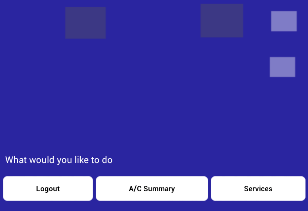
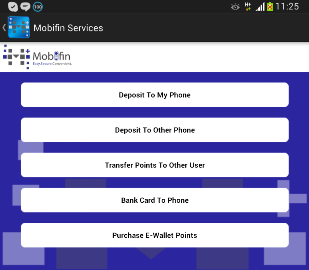
- To transact from the Application, click/touch Services and select the service you require.
How to use the Mobifin Plus App
How to Top up your M-PESA account using your Mobifin Utility Account
- Select Top up M-PESA Account.
- Under that menu, select Top up using Mobifin Utility Account.
- You will then be directed to our payment page where you will have the funds in your utility account indicated at the top.
- Select the tab with the title 'My Phone'.
- You will then proceed to type in the details of the transaction which includes Amount and Pin Number selected during registration.
- The phone number that will be credited will be the one you registered with. You will be required to enter a Human Verification Code for security purposes and then click on the SUBMIT button to continue.
- On successful deposit, Mobifin Plus will notify you and send you an email with the transaction details. You will receive an SMS when your deposit goes through.
How to Top up another M-PESA account using your Mobifin Utility Account
- Select Top up M-PESA Account.
- Under that menu, select Top up using Mobifin Utility Account.
- You will then be directed to our payment page where you will have the funds in your utility account indicated at the top.
- There will be two options. Select the tab with the title 'Other Phone'.
- You will then proceed to type in the details of the transaction which includes Amount, Other Phone Number and Pin Number selected during registration.
- The phone number that will be credited will be the one you entered on the payment page. You will be required to enter a Human Verification Code for security purposes and then click on the SUBMIT button to continue.
- On successful deposit, Mobifin Plus will notify you and send you an email with the transaction details.
How to Load your Mobifin Utility Account using M-PESA
- Go to the Safaricom menu on your phone.
- Select M-PESA.
- Select Lipa na M-PESA.
- Select Pay Bill.
- Enter Business no. 376650
- Enter Account no. as your Mobifin username or phone number registered on Mobifin.
- Enter Amount.
- Enter your M-PESA pin.
- Submit.
- On successful payment, you will be notified on email and funds will be credited in to your Utility Account automatically.
How to do a Bank Deposit.
- Select Banking Services.
- Under that menu, select Deposit to Bank Account.
- You will then be directed to the bank deposit page where you will type in the details required which include the Bank name, Account Name, Deposit Amount etc.
- Type in your Mobifin Pin and Submit.
- On successful submission, you will be notified on Mobifin Plus and an email will be sent to you with the transaction details.